
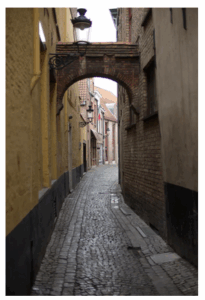
Shortcuts in editing may be frowned upon, but when it comes to word processing, editing shortcuts are not only allowed, they’re essential. If you’re still fumbling around in the pull-down menus, fighting with features that won’t leave you alone, and wasting time on tasks that could be done with lightning speed, stop it right now!
Here are just a few shortcuts you can try. Pick one or two and use them until they’re second nature. Then pick a couple more. Or, if you prefer, think of something you hate doing and see if you can find a shortcut online by Googling “shortcut for [hated task here].”
Useful Shortcuts in Microsoft Word
- Toggle tracking on and off: Ctrl+Shift+E.
- Upper- or lowercase selected words: Shift+F3. Do it again. And again.
- Show/hide hard returns and space marks: Ctrl+Shift+8.
- Single-space the paragraph your cursor is in: Ctrl+1 (then, just for fun, Ctrl+A, then F4). Note: Ctrl+2 for double-spacing.
- Jump to your previous editing location: Alt+Ctrl+Z.
- Cursor by a paragraph or a word at a time: Ctrl + Arrow keys.
- Remove all hyperlinks in a document: Ctrl+A, then Ctrl+Shift+F9.
- Split/unsplit your screen: Alt+Ctrl+S.
Gaining skill with your primary editing tool increases your power and worth. It gives you time and money. And it feels great.
_____
Photo: Shortcut, erfan a. setiawan.
This post originally appeared at the Chicago Manual of Style Online Shop Talk blog on June 7, 2016, © University of Chicago.